
This will guide you on how to download the Shopify payouts by another method i.e. Payout ID
Steps to Resolve: Downloading Shopify Payout by ID
- Identify the Payout ID:
- Login to Shopify as admin and navigate to the payout section. (e.g.,
https://admin.shopify.com/store/yourstore/finances/payouts/<payout_id>). - In Shopify under Finances go to Payouts. Open the payout in the URL copy the Payout ID.
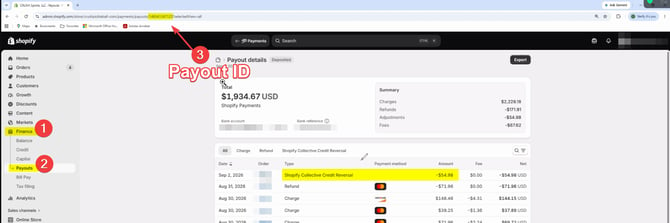
- Login to Shopify as admin and navigate to the payout section. (e.g.,
- In Webgility Desktop 'Download Payout by ID':
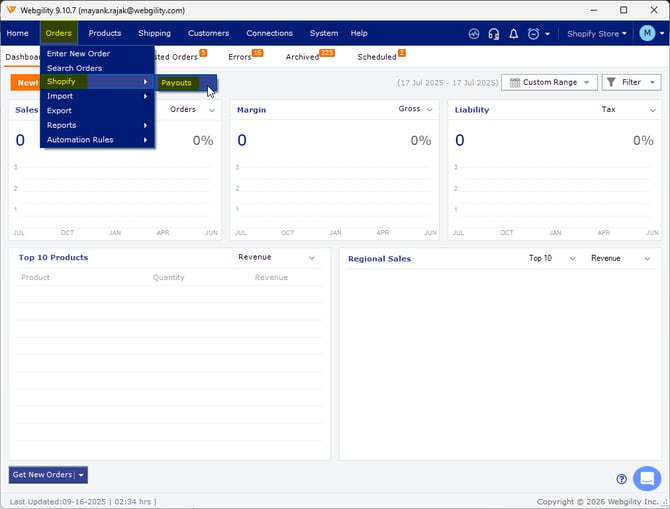
- In Webgility Desktop, navigate to Orders then Shopify and Payouts.
- Beside Get Payouts, click on the small white arrow, select By ID (usually found near standard download options).
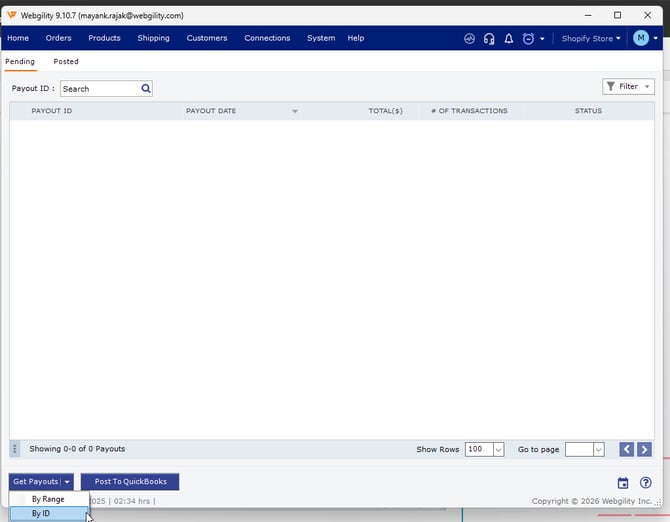
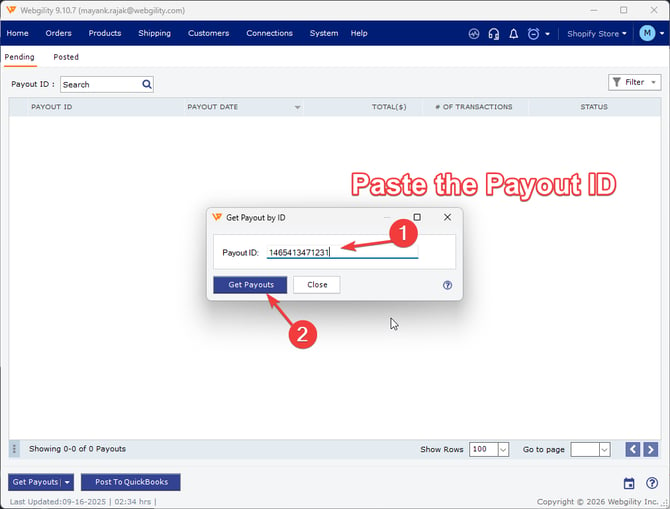
- Paste the copied Payout ID into the prompt and click Download & confirm that the payout downloads and appears in the list.
- In Webgility Desktop, navigate to Orders then Shopify and Payouts.
- Verify Posting in QuickBooks:
- Once the Payout is downloaded, select the payout and click on Post to QuickBooks.
- Confirm successful sync and posting.
- Check that payout reconciliation info matches with Shopify.
For any Payout Posting Errors feel free to reach out to Support@webgility.com.