
When posting an order to QuickBooks, Webgility may display the following error:
“You can't set taxable if Sales tax is turned off or the item is not a taxable item type.”
This error occurs when Webgility attempts to post an item as taxable, but QuickBooks does not allow the taxable setting.
Cause
The error usually occurs when:
- Sales Tax is disabled in QuickBooks.
- The item mapped in Webgility is not a taxable item type in QuickBooks.
- The item's tax settings in Webgility and QuickBooks do not match.
Resolution:
Verify Sales Tax Settings in QuickBooks
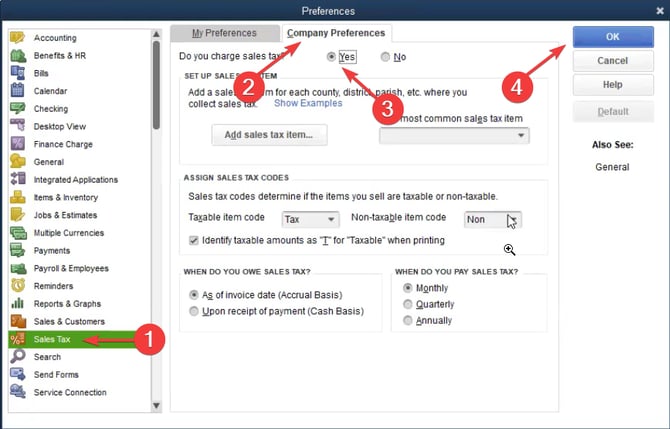
- Login to QuickBooks, go to Lists then Preferences.
- Under Preferences go to Sales Tax then Company Preferences.
- In Company Prefences click on Yes to enable sales Tax, create a common Sales Tax item (mandatory step for QB) and click on OK.
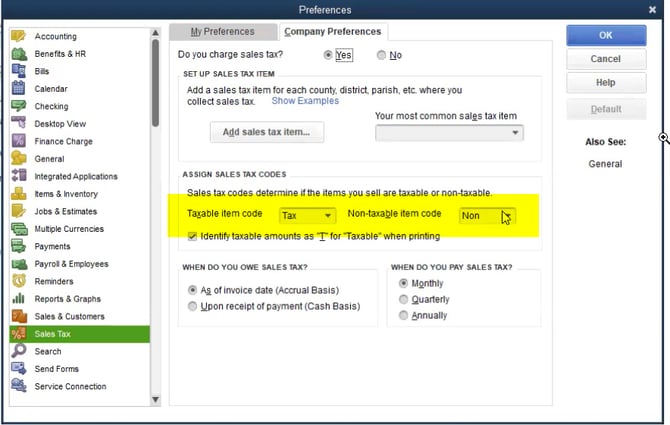
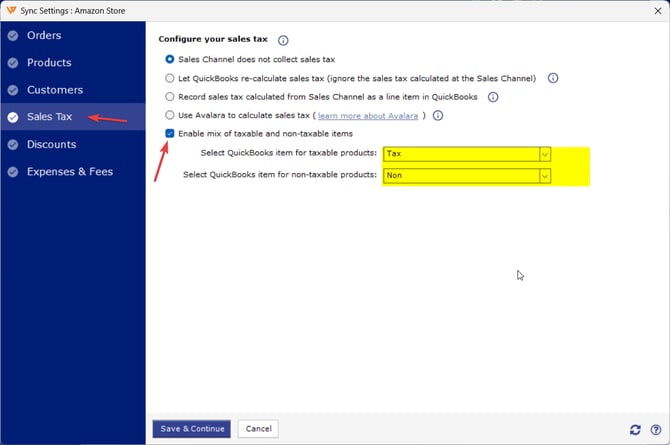
- In Company Preferences make sure Taxable & nontaxable codes are also configured, and same should be used in Webgility Desktop under Sales Tax Settings.
- Once enabled in Webgility Desktop go to Connections, then Get Latest Data & Settings and download the QB data.
- Go to Connections then Accounting and Sync Settings, go to Sales Tax, verify the Enable mix of taxable & nontaxable item setting.
- After veryfying retry posting the affected orders to QuickBooks, they will sync over.
Feel Free to reach out to support@webgility.com.