
If your business runs more than one QuickBooks Online company or multiple Intuit Enterprise Suite (IES) entities separate legal entities, brands, or regions, for example Webgility Online can keep each one completely separate. You connect each QuickBooks Online company once, then explicitly map every sales channel to exactly one of them. Orders, products, customers, and other accounting data for a mapped sales channel only ever sync to the QuickBooks Online company it's mapped to nothing crosses over between entities.
Important: Connecting and mapping multiple accounting entities is currently supported for QuickBooks Online only. If you also connect Xero or QuickBooks Desktop, that connection uses Webgility Online's standard single-company flow and does not go through the mapping step described below.
Note 1 : Each sales channel can be mapped to exactly one QuickBooks Online company at a time, and each QuickBooks Online company can only be connected to Webgility Online once. A sales channel that hasn't been mapped yet won't post any orders they're held until you map it.
Note 2 : This feature is only available on the Complete Enterprise Webgility Online plan.
Map Your Sales Channel During Initial Onboarding
Step 1: Complete the mapping step in Quick-start
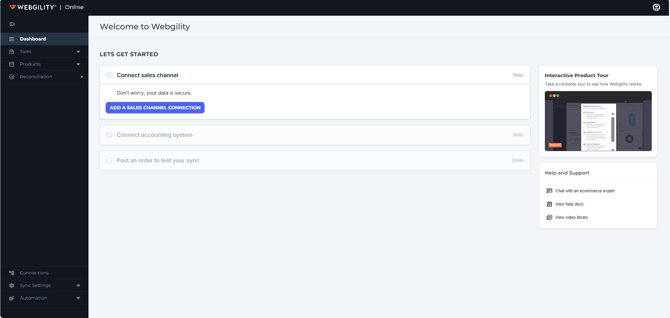
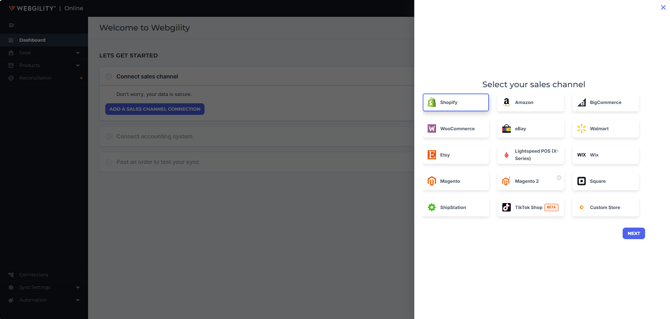
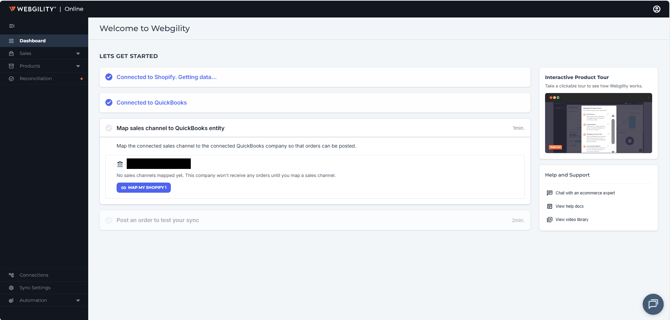
After you connect your sales channel and your QuickBooks Online company during Quick-start, Webgility Online adds a Map sales channel to QuickBooks entity step. It lists the QuickBooks Online company you just connected and prompts you to map your sales channel to it before you can continue.
Step 2: Start the mapping
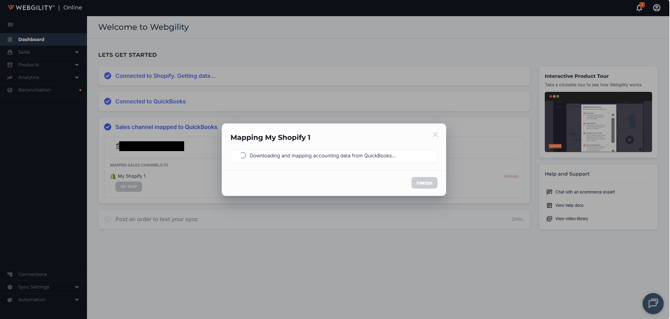
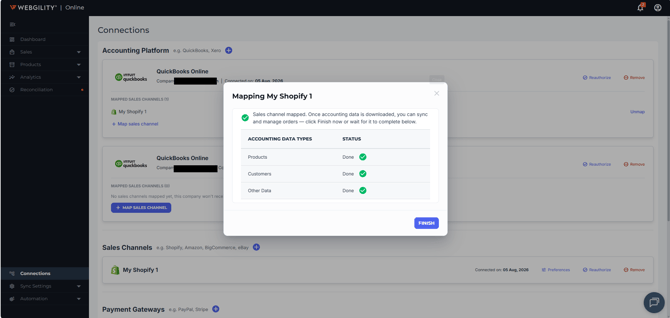
Click MAP MY [your sales channel name]. A Mapping dialog opens and downloads and maps your Products, Customers, and Other Data from that QuickBooks Online company.
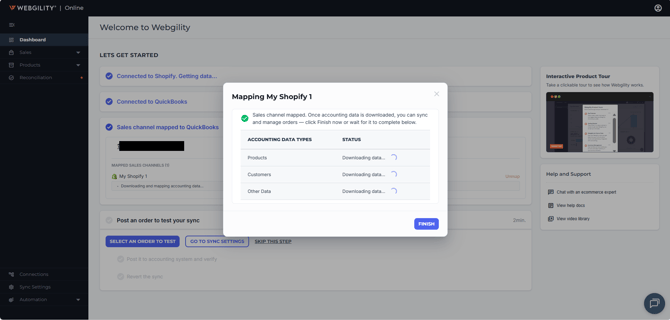
Step 3: Finish mapping
When every row shows Done, click FINISH.
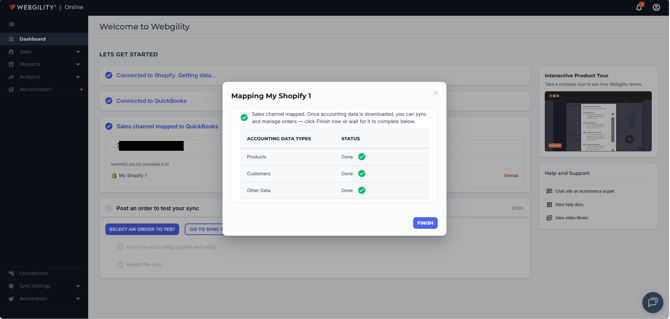
Step 4: Confirm your accounting settings
The first time you map a sales channel to a QuickBooks Online company, Webgility Online shows the QuickBooks Accounting Settings popup so you can confirm how Shipping, Inventory, Sales Tax, and Customer Transaction # should be handled. Review the settings and click CONTINUE.
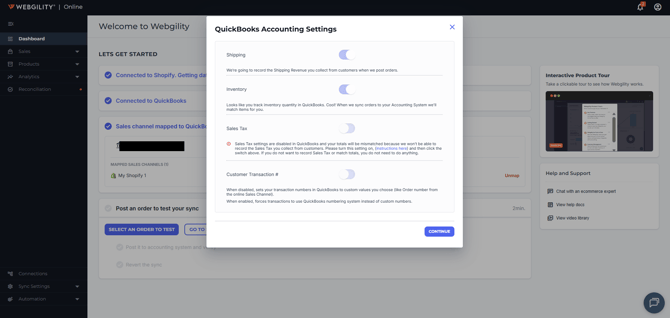
Step 5: Confirm the mapping
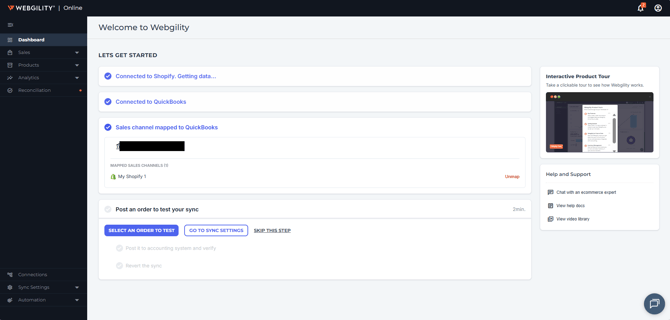
Your sales channel now shows as mapped, with an Unmap link if you ever need to change it, and Quick-start moves on to the Post an order to test your sync step.
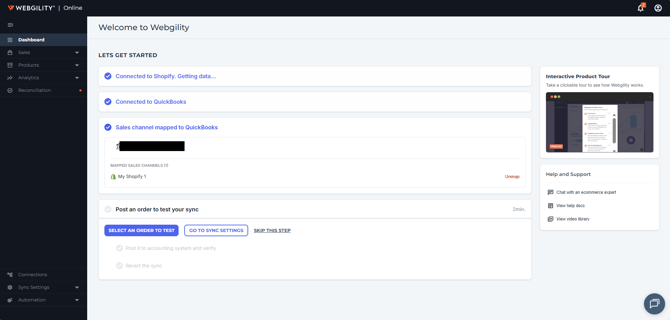
Connect an Additional QuickBooks Online Company
Step 6: Add another accounting platform
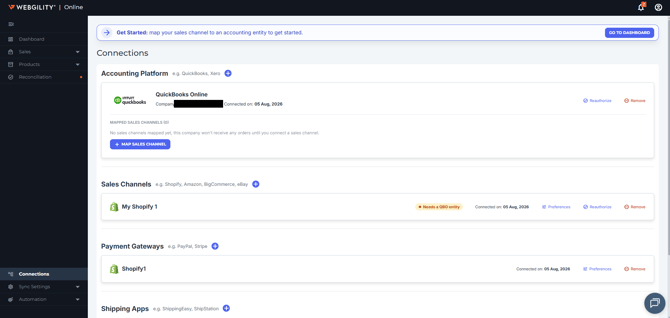
Go to Connections. Under Accounting Platform, each connected QuickBooks Online company appears as its own card showing its company name, connection date, and its own MAPPED SALES CHANNELS list. To connect another company, click the + next to Accounting Platform.
Step 7: Connect and authorize
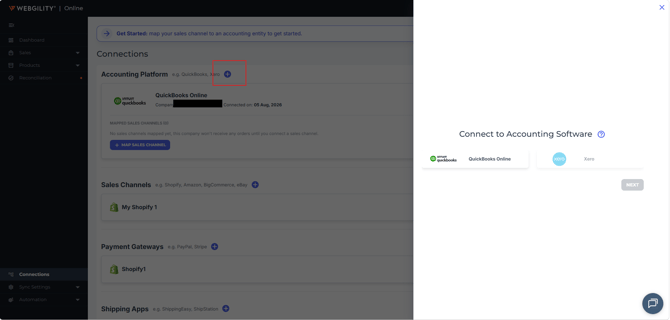
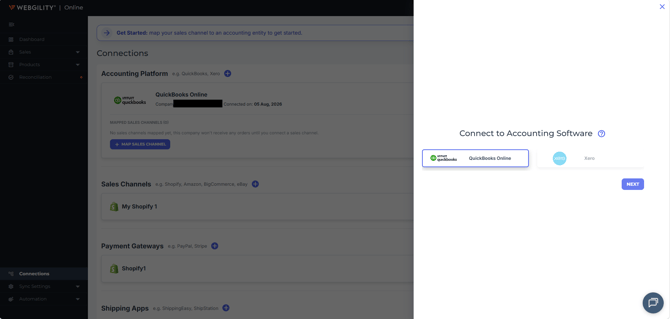
Choose QuickBooks Online and click NEXT, then click Connect to QuickBooks and sign in to authorize Webgility to access the additional company.
Step 8: Confirm the new connection
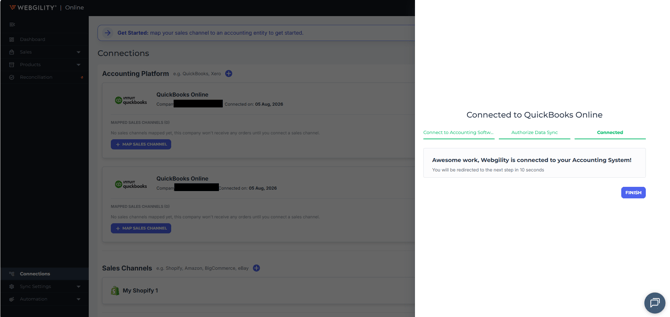
Once authorized, Webgility Online confirms the new company is connected. Your Accounting Platform section now lists both QuickBooks Online companies side by side, each with its own MAP SALES CHANNEL button.
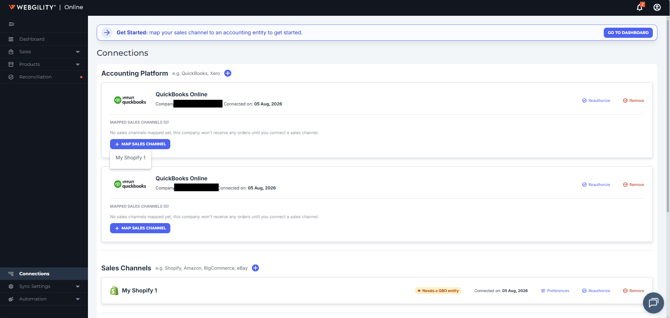
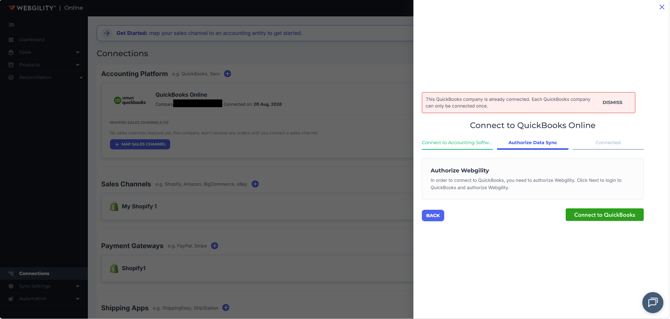
Note 3 : If you try to connect a QuickBooks Online company that's already connected to your account, Webgility Online blocks it: “This QuickBooks company is already connected. Each QuickBooks company can only be connected once.”
Map or Remap a Sales Channel from Connections
Step 9: Choose a channel to map
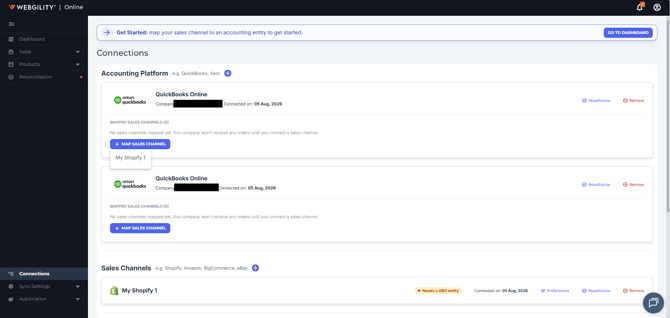
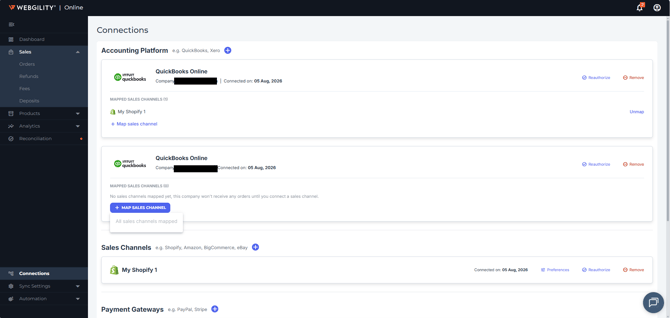
From the Connections page, find the QuickBooks Online company you want to map a channel to and click MAP SALES CHANNEL. Choose the sales channel from the dropdown — only unmapped channels are listed.
Step 10: Let it map
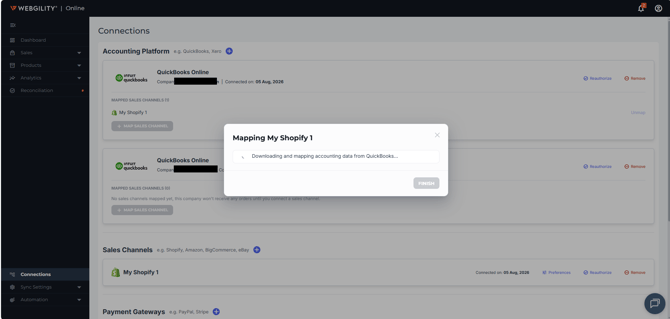
Webgility Online downloads and maps the channel's accounting data the same way it does during Quick-start.
Step 11: When everything is mapped
Once every sales channel you have is mapped to a QuickBooks Online company, the MAP SALES CHANNEL button shows All sales channels mapped instead of a dropdown.
Unmap a Sales Channel
Step 12: Unmap
To disconnect a sales channel from its QuickBooks Online company without removing either connection, click Unmap next to the mapped channel.
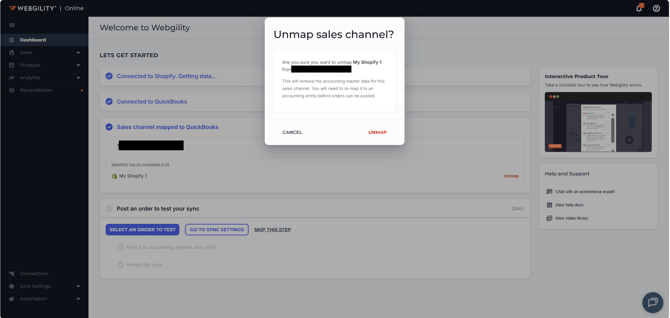
Note 4 : Orders a sales channel receives while unmapped are held — they are not posted to any QuickBooks Online company until you map the channel again. You can remap it at any time. Before unmapping a QuickBooks Online company connection itself, unpost any existing transactions first if you intend to repost them to a different company — once a company is unmapped, you can no longer unpost transactions from it.
Switching Between Sales Channels and Their Mapped Company
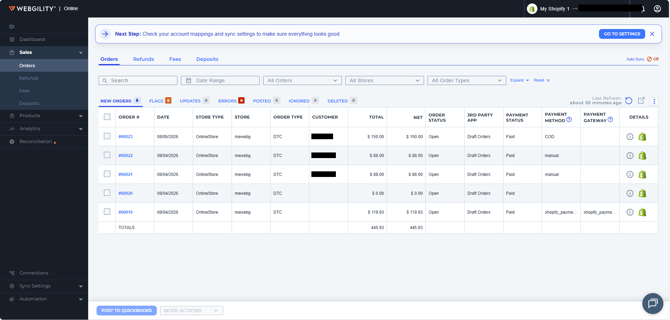
Step 13: See the mapped company at a glance
When you have more than one sales channel connected, the sales channel switcher in the top navigation bar shows which QuickBooks Online company the current sales channel is mapped to. Orders, Refunds, Fees, and Deposits all scope to the selected sales channel's mapped company.
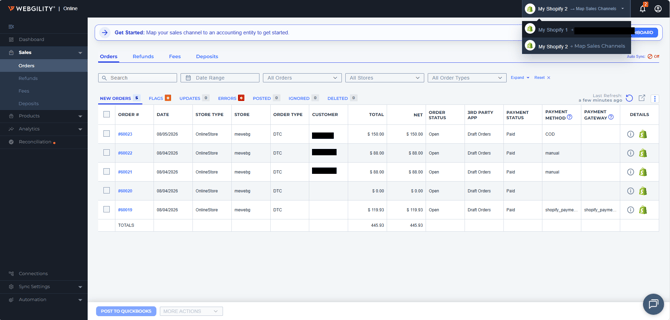
Step 14: Check every channel's mapping status
Open the sales channel switcher to see every connected sales channel and its mapping status at a glance — mapped channels show their QuickBooks Online company; unmapped channels prompt you to Map Sales Channels.
Frequently Asked Questions
Do I need to map every sales channel to a QuickBooks Online company?
Yes. A sales channel that isn't mapped won't post any orders — Webgility Online holds them until you map that channel to a QuickBooks Online company.
Can one sales channel post to two different QuickBooks Online companies?
No. A sales channel can be mapped to exactly one QuickBooks Online company at a time. To send it to a different company, unmap it first, then map it to the new one.
Can I connect the same QuickBooks Online company twice?
No. Webgility Online only allows each QuickBooks Online company to be connected once. Trying to connect it again shows an “already connected” message.
What happens to orders received while a channel is unmapped?
They're held. Webgility Online does not post them to any QuickBooks Online company until you map the channel again — then normal syncing resumes.
Is multi-entity mapping available for Xero or QuickBooks Desktop?
Not currently. Connecting multiple companies and mapping sales channels to them is supported for QuickBooks Online. Xero and QuickBooks Desktop use Webgility Online's standard single-company connection flow.
What should I do before disconnecting a QuickBooks Online company entirely?
Unpost any existing transactions from that connection first if you intend to repost them to a different QuickBooks Online company. Once a company connection is removed, you can no longer unpost or repost its transactions elsewhere.