
Summary Journal Entry
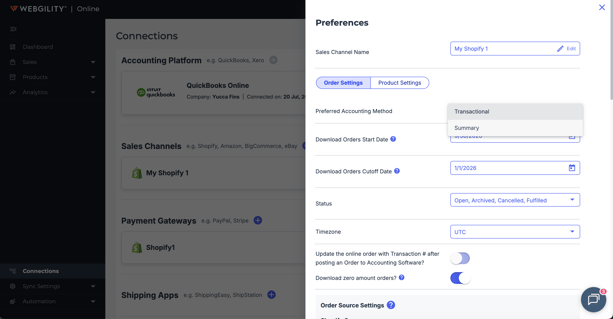
When Summary as a Journal Entry is selected, Webgility Online combines orders and refunds into a single journal entry using the default payment processor. This keeps transactions organized and simplifies reconciliation.
Shopify Payments Payout Batching
Once Shopify Payments is connected:
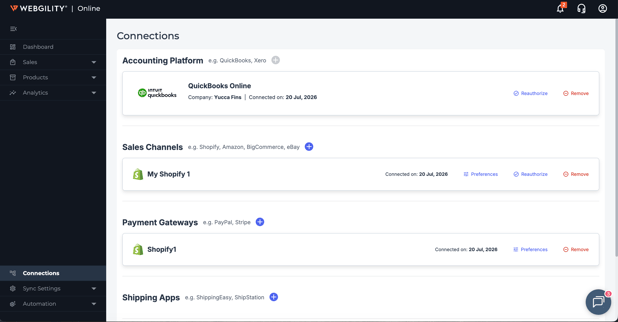
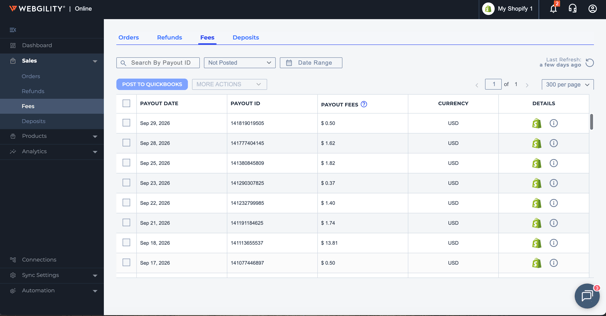
- Orders, refunds, and fees are grouped automatically by Payout ID.
- Webgility prepares each payout as a Ready to Reconcile batch in QBO.
- Payouts follow your Shopify Payments schedule, typically daily, or weekly/monthly if configured.
Note: It can take up to 72 hours after the payout period closes for funds to be deposited and payout data to become available from Shopify.
How Webgility Handles Payouts
Once payout data is available, Webgility Online:
- Downloads the finalized payout data.
- Groups orders and refunds by Payout ID.
- Reconciles transactions against the Shopify payout.
- Records fees and adjustments as line items against the selected account.
- Categorizes orders and refunds according to your configured income and expense accounts.
Important
Summary as a Journal Entry with automated Shopify payout reconciliation is currently available only when Shopify Payments is connected through Webgility Online.
If Shopify Payments is not connected, you can still post orders using a daily or weekly journal entry summary, but automated payout reconciliation will not be available.
Benefits
Using Webgility Online for Shopify payout reconciliation helps you:
- Match transactions directly to Shopify payout deposits.
- Avoid duplicate entries and manual adjustments.
- Automate batching by payout period.
- Reduce manual reconciliation work in QuickBooks Online.
If you still need assistance, contact Webgility Support at support@webgility.com