
Shopify payouts can get stuck mid-posting, repeatedly failing at the order-posting step with the message "Please verify all your data and settings." Turning off the multi-location inventory check in your order Sync Settings lets the stuck payout move past the order step so the rest of the payout can post.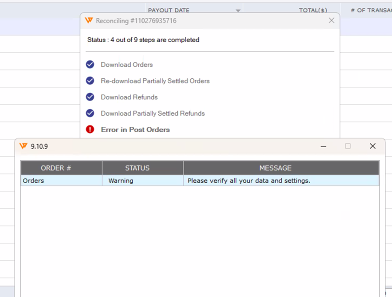
You are posting Shopify payouts in Webgility Desktop (see Shopify Payout Reconciliation in Webgility Desktop with QuickBooks Desktop), an order inside the payout keeps bouncing to the Error tab with the message above, and re-downloading the order followed by re-posting puts you back at the same stuck step every time.
Why This HappensWhen Webgility Desktop checks for multiple QuickBooks inventory sites during order posting, a single mismatched item on a payout order can block the entire payout from completing. With the inventory-location check turned off, Webgility posts the order using the default inventory site and the payout proceeds to the fees and deposit steps.
Important Note: "Only turn off the inventory-location check if you post to a single QuickBooks inventory site. If you deliberately split stock across multiple inventory sites, keep this check on and resolve the mismatched item on the order instead."
Steps to Clear the Stuck PayoutStep 1: Go to Connections > Accounting/POS/ERP > Sync Settings and open the Products tab.
Step 2: Turn off the Track inventory in Multiple location setting during posting and click Save (see Order Total is Less Than Settled Amount in Shopify Payout, Please Redownload Order if your orders also need a redownload).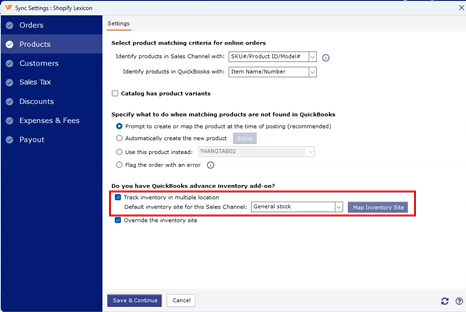
Step 3: Open the Payouts view, select the stuck payout, and click Post to continue from the step it failed on (if an order inside the payout still fails because the item is not found, map the item first using Business Validation Error: Item History Could Not Be Locked as a reference for item-side blockers).
Step 4: After the payout clears, confirm the Shopify clearing account balance in QuickBooks matches the Shopify payout amount for that batch.
Key RecommendationKeep the Shopify order IDs you corrected during this fix in a short list; if the same payout stalls on a different order next time, the pattern usually points to an item that was renamed or deleted in QuickBooks after Webgility first downloaded it.
Additional SupportIf the payout still fails at order posting after the setting change and item correction, email Webgility Support with the payout ID, the order ID that is bouncing, and a screenshot of the error on that order.