
What You'll Need
Microsoft Excel (or any spreadsheet that supports Find and Replace), the exported Missing-in-QB CSV file, and a backup of the CSV so you can revert if a replacement goes wrong.
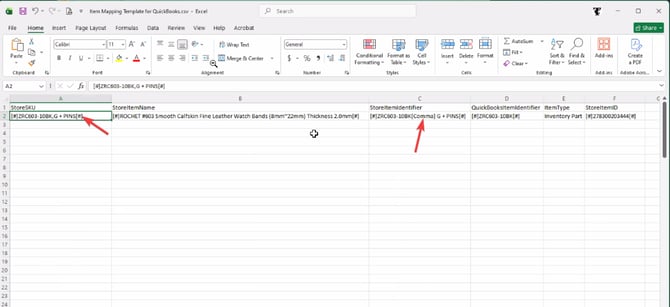
Steps to Clean the Exported CSV
-
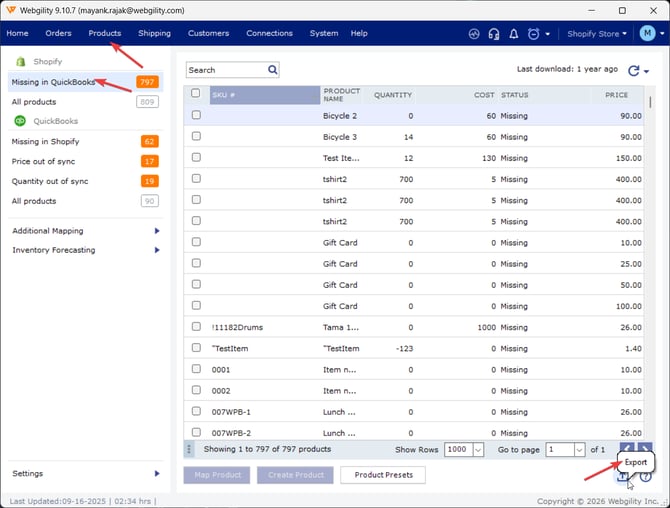
Open Webgility Desktop and go to Products, then export the Missing in QB list for the sales channel you are mapping.
-
Save a copy of the exported file so you have a backup of the CSV file.
-
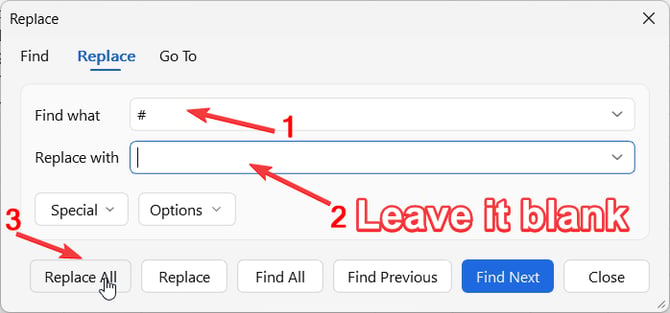
Open the working copy in Excel. Press Ctrl+H or Ctrl+F to open Find and Replace, type # in the Find what field, leave Replace with empty, and click Replace All.
-
Repeat Find and Replace for the comma character so no SKU or item name contains one.
-
Save the file as a CSV and re-import it in Webgility Desktop using the steps in How To Map Products via .CSV File in Webgility Desktop.
Key Recommendation
Before you edit the file, check the SKU or item name on the sales channel side to confirm the character is not meaningful to the product listing; strip it only from the mapping file, not from your live product data.
If the import still fails after you remove the hash and comma, contact Support with the cleaned CSV attached and the exact error Webgility Desktop returns at support@webgility.com.