
Error Prompt:
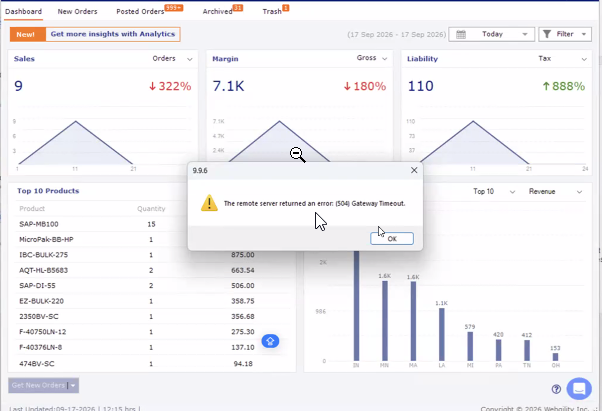
Troubleshooting Steps:
- In Webgility Desktop, go to Connections then Sales Channels, go to Manage Sales Channels, and click on the edit icon for BigCommerce.
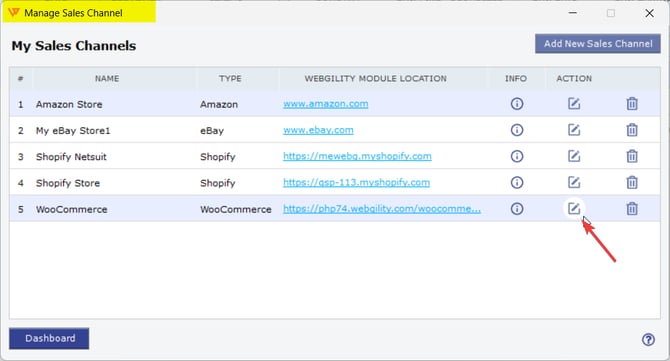
- In the next window, click on Connect to BigCommerce, Windows will re-direct you to a Web Browser, for BigCommerce Login Page.
- Login with the Admin Credentials in BigCommerce, and follow the on-screen steps, once finished you will receive a Succesfully Connected prompt
- Go back to Webgility Desktop, click on Ok for the Succesfully Connected prompt, click on Next & Save Sales Channel.
- Once done re-try downloading the missing orders.
Using Microsoft Edge as a default browser:
- If you're using Microsoft Edge as a default Web browser, then the reconnection might now work & will get stuck in a loop as soon as you login to BigCommerce; that's because Edge is not updated with the latest patches as compared to the other web browsers.
- In the Windows Search Bar, type in Default Apps.
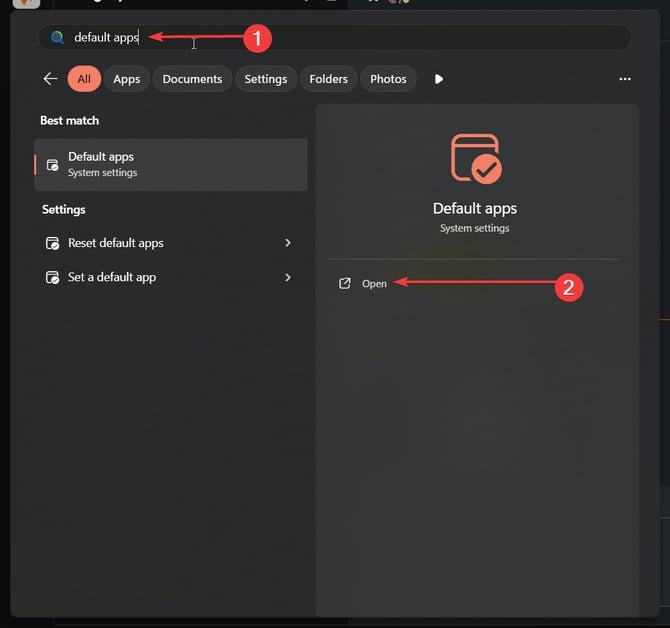
- In Default Apps, under Set Defaults for applications, search Google Chrome.
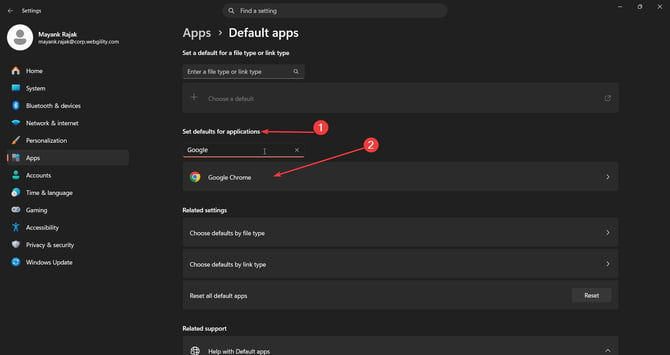
- Click on Set Default on the upper right-hand side to make Chrome your Default Web Browser.
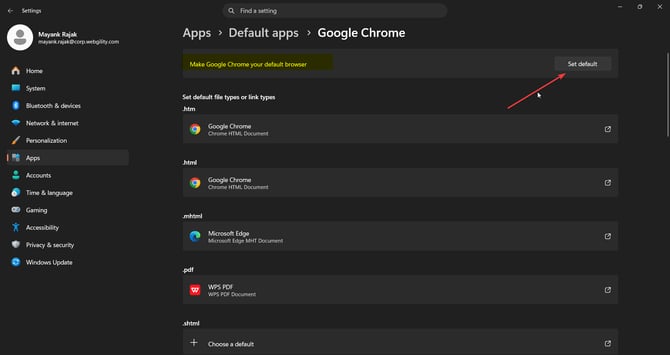
- Once done, go back to Webgility and retry testing the Sales Channel connection as mentioned in the steps above. This time Windows will open Google Chrome instead of Microsoft Edge for the BigCommerce Login.
Feel free to reach out to support@webgility.com.