
Issue
When attempting to download orders, sync inventory, or refresh data in Webgility Desktop, the following error popup appears:
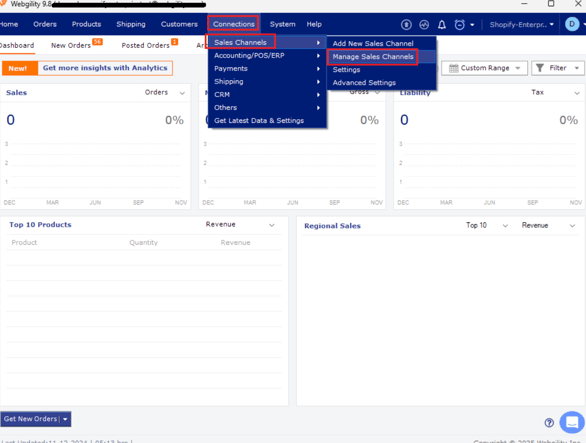
"Let's make sure your admin credentials are accurate and up to date. To edit your connection details go to Connections > Sales Channels > Manage Sales Channels."
Symptoms
- Admin credentials pop-up appears during order download.
- Orders are not downloading as expected.
Troubleshooting Steps
- Update Webgility Desktop
- Open Webgility Desktop.
- Go to Help > Check for Updates.
- Install the latest available version.
- Verify BigCommerce Connection
- Go to Sales Channels
- Click on Manage Sales Channel and Edit connection.
- Review the BigCommerce connection details.
- Confirm that the connection is active and valid.
- Confirm that the required admin credentials are available.
- Ensure the appropriate user has the necessary permissions.Verify Admin Credentials.
If you have completed these steps and continue to see the popup, please reach out to Webgility Support at support@webgility.com for further investigation.