
What Happens During Reauthorization?
When you reauthorize your Square channel in Webgility Online, all locations associated with your Square account are automatically added as separate store profiles (based on the current API behavior).
This means:
- Each Square location will appear as an individual sales channel under Connections.
- Locations that were not previously enabled may start downloading orders
Why This Matters
If not reviewed, this can lead to:
- Unintended order downloads from additional locations
- Duplicate or unexpected entries in your accounting system
- Increased usage that may impact your Webgility billing (overages)
Steps for Reauthorization
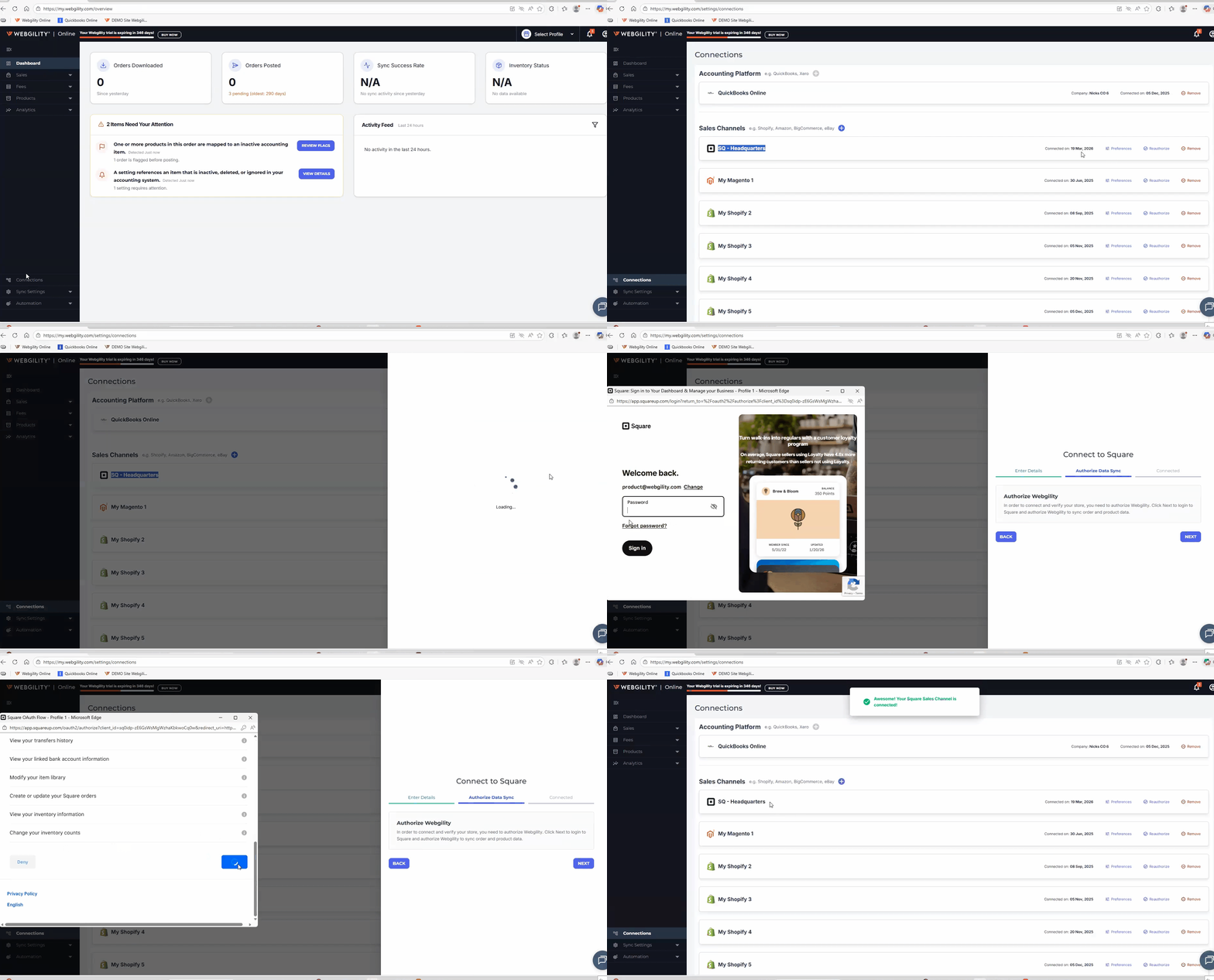
- Go to Connections
- Navigate to the Connections section in Webgility Online.
- Click on Reauthorization on your Square Channel
- For your connected Square channel, look for Reauthorize and click on it.
- Update Credentials
- It will open a pop-up asking you to enter your Square Admin login email and password, so do the needful.
- Authorize the App.
- Click on Allow to authorize Webgility Online app to access your Square channel.
- Finish
- Once done then click on Finish to complete the process.
Steps to Follow After Reauthorization
To ensure everything works as expected, follow these steps immediately after reauthorizing:
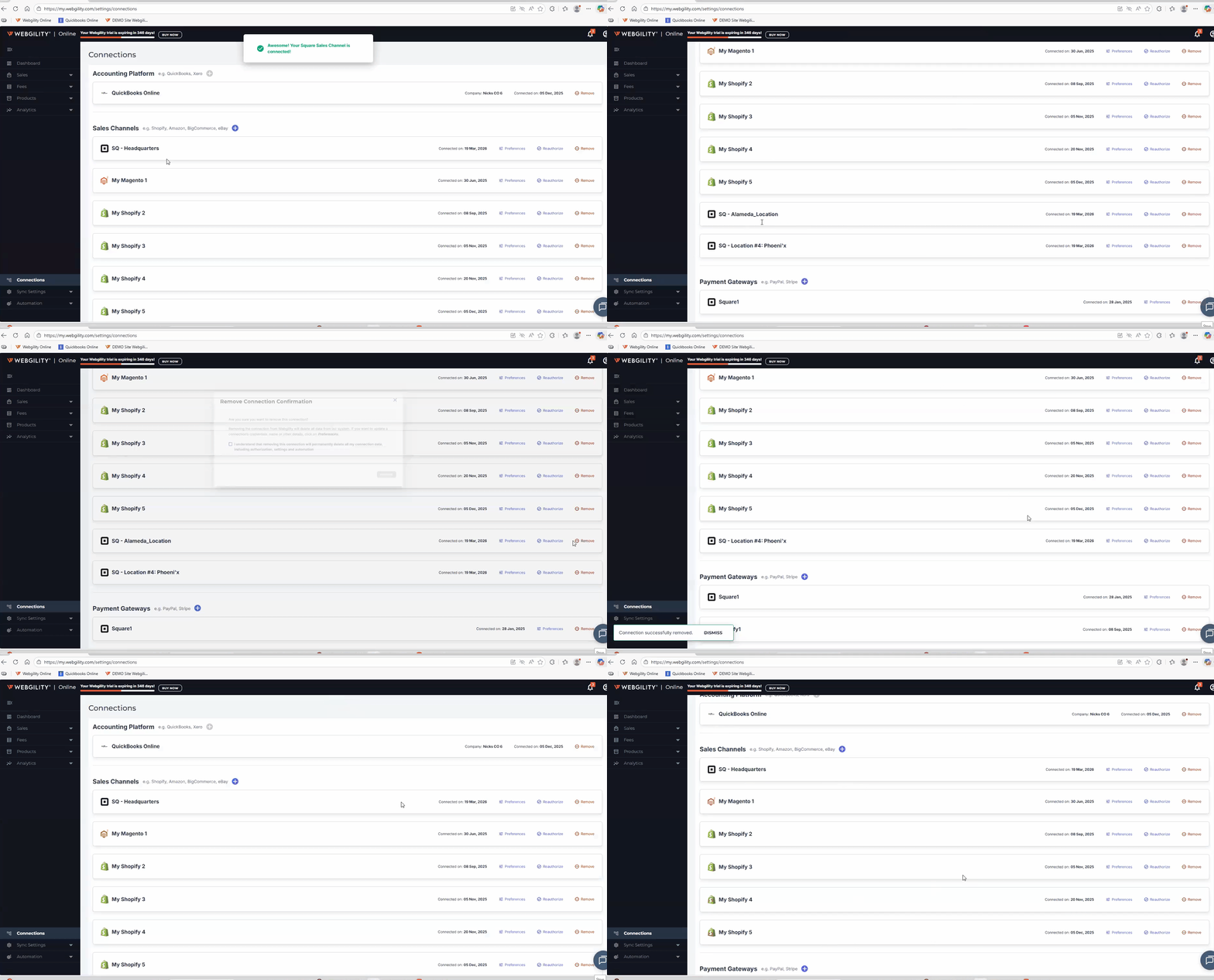
- Go to Connections
- Navigate to the Connections section in Webgility Online.
- Review All Square Store Profiles
- You will see multiple Square integrations listed—each representing a different location.
- Identify Unwanted Locations
- Check which locations you do not want to sync orders from.
- Remove Those Unwanted Locations
- Disconnect or remove the unwanted store profiles to stop order downloads from those locations.
- Verify Active Connections
- Ensure that only the required Square locations remain connected.
Best Practice
Always verify your active store profiles immediately after every Square reauthorization in your Webgility Online to ensure only the intended locations are connected.
By taking a moment to review your connections, you can:
- Prevent unnecessary order downloads
- Keep your accounting data clean and accurate
- Avoid unexpected billing overages