
Summary
This guide helps you resolve Amazon settlement report posting errors in Webgility Desktop when an affected order needs to be re-downloaded before the settlement report can be posted successfully to QuickBooks.
Symptoms
You may experience the following:
- Settlement report posting stops at Step 2 of 10 – Re-download the partially settled order.
- The settlement report cannot be posted to QuickBooks.
- Webgility prompts you to re-download one or more orders.
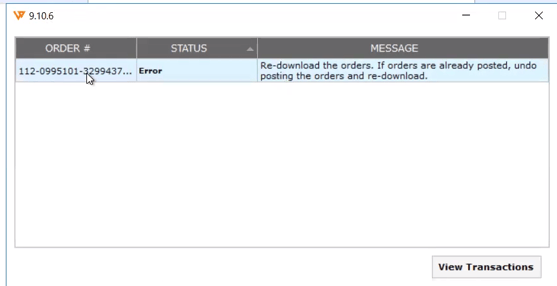
Error message:
“Re-download the orders. If orders are already posted, undo the posting of the orders and re-download.”
Root Cause
This issue may occur when:
- An order was downloaded and posted to QuickBooks while it was still Pending on Amazon.
- The order was downloaded before all required information was available.
- The order needs to be re-downloaded to retrieve the latest information from Amazon.
Resolution
Step 1: Identify the Affected Order
- Open Webgility Desktop.
- Go to Settlement/Payouts.
- Select the settlement report that is showing the posting error.
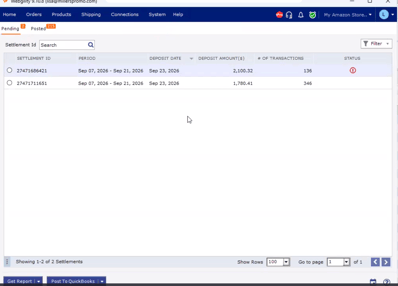
- Click View Transactions.
- Identify the order associated with the error.
Step 2: Undo the Previous Order Posting
If the affected order has already been posted to QuickBooks:
- Go to the Posted Orders or Archive tab.
- Search for and select the affected order.
- Click Undo Sync or Undo Posting.
- Confirm the action.
Note: Only undo the posting for the affected order(s). Do not undo unrelated orders.
Step 3: Re-download the Order
After undoing the previous posting:
- Re-download the affected order from Amazon.
- Verify that the order contains all required information.
- Confirm that the order is available in Webgility and ready to post.
Step 4: Post the Settlement Report
Once the affected order has been successfully re-downloaded:
- Return to the affected settlement report.
- Select the report.
- Click Post to QuickBooks.
- Verify that the settlement report posts successfully.
If the Issue Persists
If the error continues:
- Click View Transactions on the settlement report.
- Verify that all affected orders have been re-downloaded.
- Confirm that the orders contain complete information.
- Retry posting the settlement report.
If you still need assistance, contact Webgility Support at support@webgility.com.