
Overview
If newly created Amazon fee accounts in QuickBooks Online do not appear in Configure Expenses in Webgility Online, the accounting list may not have been refreshed after the accounts were created.
Refreshing the accounting lists in Webgility Online typically resolves the issue and allows the newly created accounts to appear in the expense account dropdown.
Symptoms
You may experience one or more of the following:
- New Amazon fee accounts have been created in QuickBooks Online.
- The new accounts do not appear in the Webgility Online expense account dropdown.
- Only existing accounts, such as Amazon Sales Commission or Amazon Fees, are available for selection.
- Newly created accounts such as the following may be missing:
- FBA Amazon Fee
- Amazon Fee
- FBA Amazon Per Unit Fulfillment Fee
Webgility Online may still be using an outdated list of accounts.
When new accounts are created in QuickBooks Online, Webgility needs to refresh the accounting information before those accounts become available for expense mapping.
Resolution
Refresh the accounting lists in Webgility Online and then check the Amazon fee mapping again.
Steps to Refresh the Accounting Lists
- Log in to Webgility Online.
- Go to Sync Settings.
- Select Refresh to update the accounting lists.
- Wait for the refresh to complete.
- Navigate to Sync Settings > Fees > Amazon.com (US) > Expense Details > Configure Expenses.
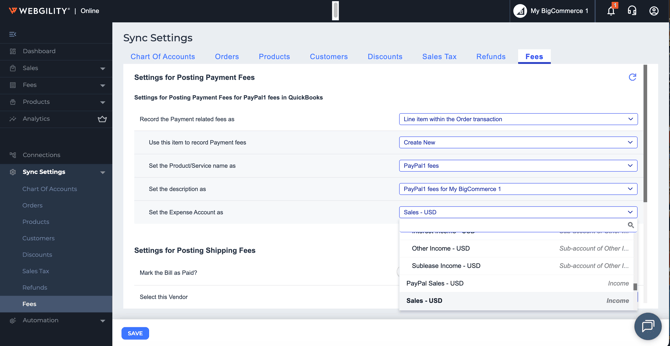
- Open the expense account dropdown.
- Verify that the newly created Amazon fee accounts are now available.
Once the accounts appear, select the appropriate account for each Amazon fee and save the changes.