
When This Applies
You sell on Amazon Mexico, you post refunds to QuickBooks Online through Webgility Online, and you use QuickBooks classes to separate revenue and expenses by marketplace. Refund line items from Amazon Mexico are landing in your discount account with no class assigned, instead of your Amazon Mexico class.
Why This Happens
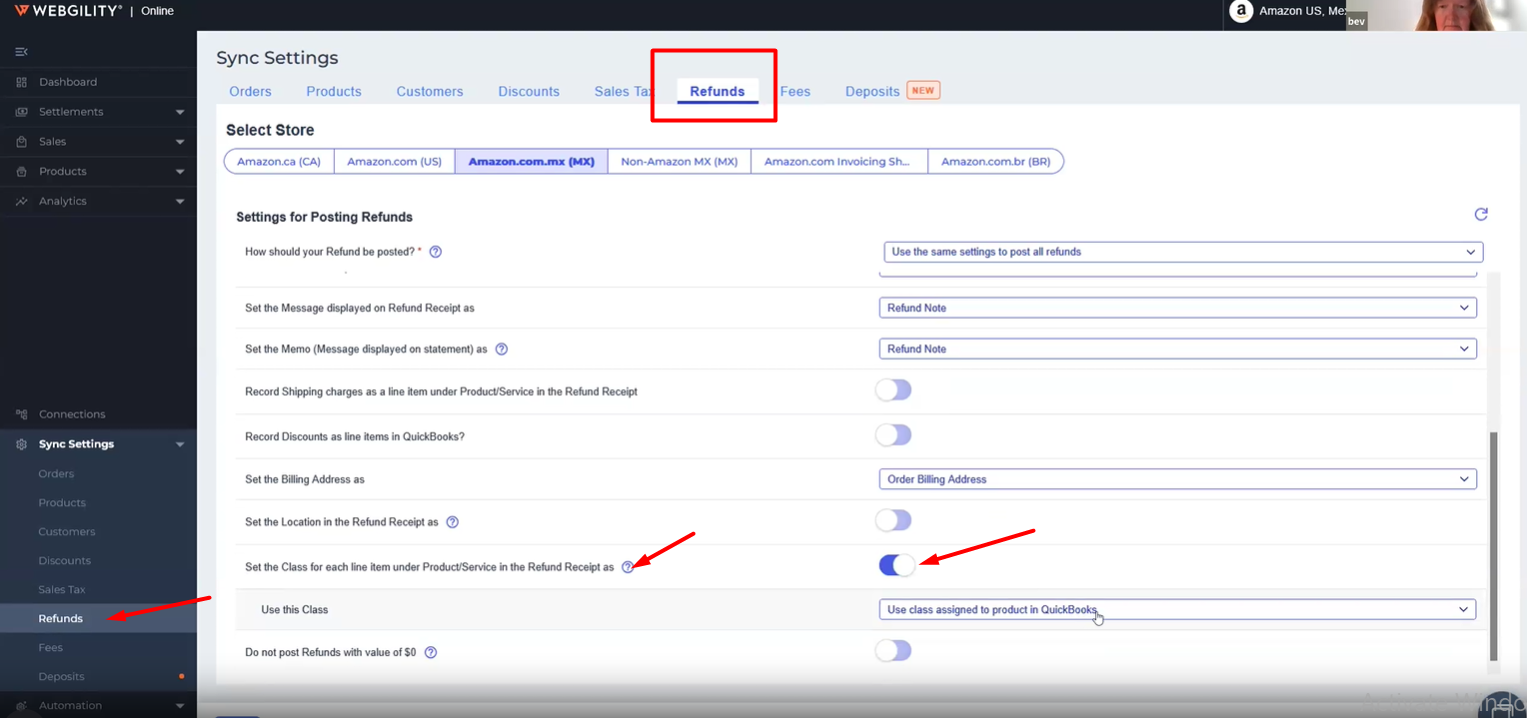
The class Webgility Online applies to a refund line item is set per marketplace inside Sync Settings > Refunds. Until you turn on the class setting for your Amazon.com.mx (MX) marketplace there, refund lines inherit the default behavior and post without a class.
Steps to Set the Refund Class for Amazon Mexico
Step 1: Sign in to Webgility Online and open Sync Settings from the left navigation.
Step 2: Open the Refunds tab.
Step 3: In the Select Store row, click Amazon.com.mx (MX) so the Refunds settings below apply to your Amazon Mexico marketplace.
Step 4: Scroll to Set the Class for each line item under Product/Service in the Refund Receipt as and turn the toggle on.
Step 5: In the Use this Class dropdown that appears, select Use class assigned to product in QuickBooks (or another option that fits your class strategy).
Step 6: Click Save and confirm the save banner appears at the top of the page.
Important Note
The class setting you just turned on applies only to Amazon.com.mx (MX). Repeat Steps 3–6 for each other Amazon marketplace tab you use (Amazon.ca, Amazon.com (US), Amazon.com.br) so every marketplace's refunds post to the correct class in QuickBooks Online.
Key Recommendation
Set the class for every Amazon marketplace tab you have configured in one sitting, so historical corrections in QuickBooks Online stay small.
Additional Support
If refunds still post to the discount account after saving, contact Webgility Support with your Amazon Mexico order ID and a screenshot of your Sync Settings > Refunds screen so we can review the class toggle and dropdown for that marketplace.