
Why this happens. When Webgility downloads a new order, it looks up the customer against your existing profiles using the matching rule set on that sales channel. If the rule is Name-based and two different customers share a name (a common one like "John Smith", or a duplicated business name), Webgility treats them as the same person and posts orders and tracking data under one profile. Switching to Email-Only matching pins each record to its email address, which is unique per customer.
- Open Webgility Desktop and go to Connections > Accounting > Sync settings.
- Open the Customer Settings tab, find Customer Matching Criteria for Orders, and change it from 'First Name, Last Name'to Email Address -Email address, Only. Click Save — a Saved confirmation appears at the bottom of the dialog.
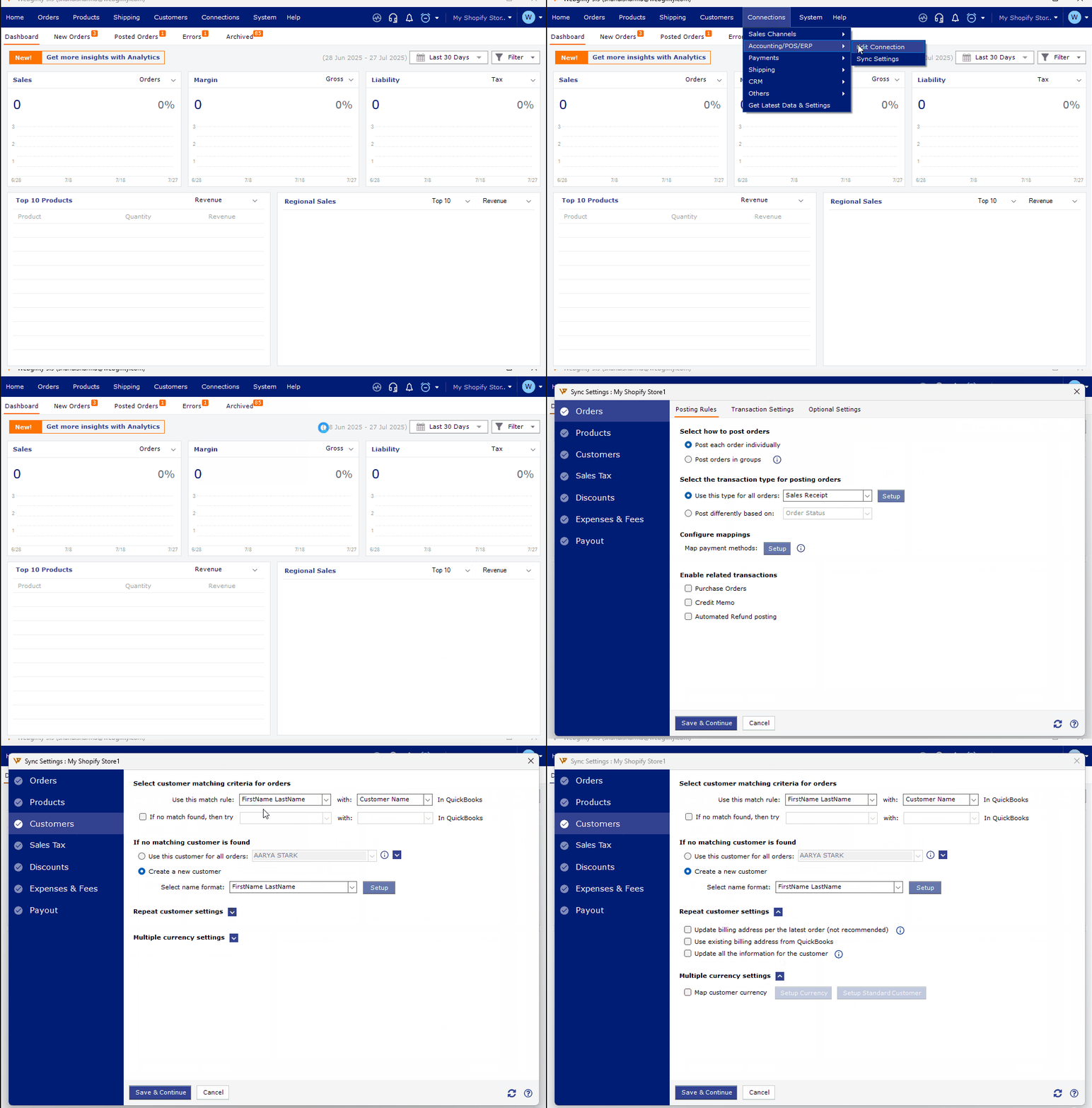
- Repeat Step 2 for every sales channel in the list — the setting is per-channel, so a store you skip will keep merging customers by name.
Note: Existing customer profiles that were already merged before this change are not automatically split apart. Contact Webgility Support if you need help unmerging historical records.
If tracking emails still go to the wrong recipient after this change, contact Webgility Support with one specific order number and the two customer names that were being merged so Support can trace the profile in your database.